Notifications and the app on your phone
No app store download needed: BullWife goes on your Home Screen like an app and lets you know about messages and requests, with discreet notifications.
Updated on November 1, 2026 2 min read
BullWife works in your browser, but it's better as an app: it opens full screen from its own icon and notifies you even when the site is closed. It doesn't go through the app stores and there are no updates to install: it's always the latest version.
Turning on notifications
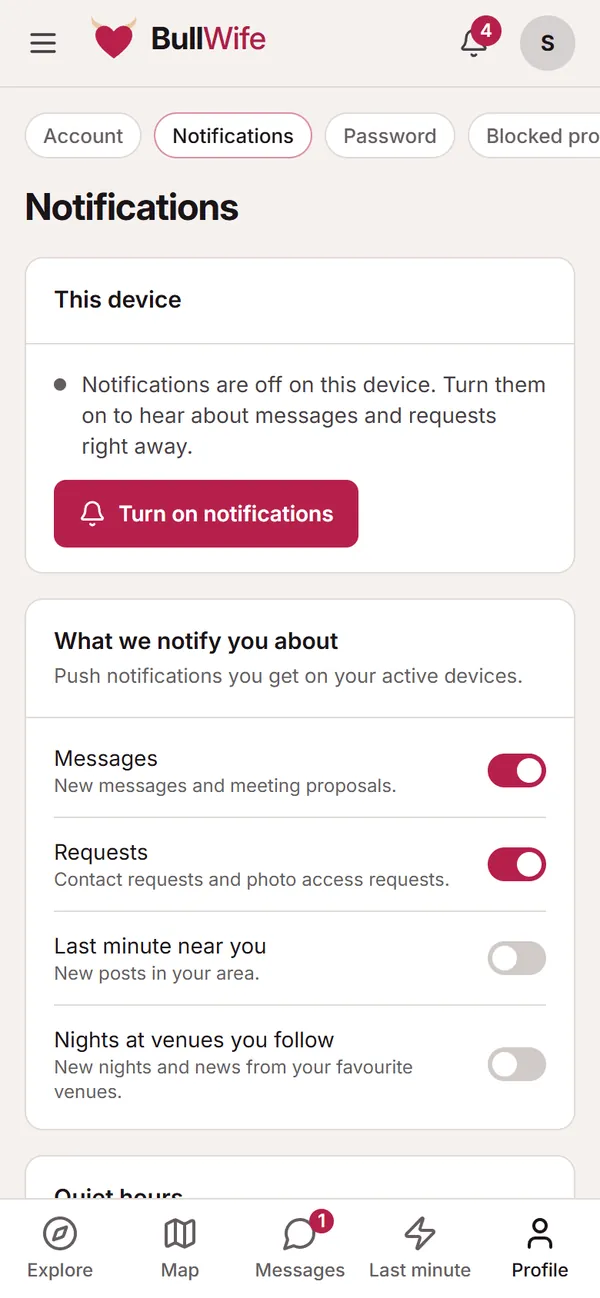
Tap your avatar at the top right and open Notifications. In the This device box, tap Turn on notifications and accept the browser's prompt. Notifications are turned on device by device: if you use both a phone and a computer, do it on each.
Then choose what we notify you about:
- Messages: new messages and meetup proposals.
- Requests: contact requests and requests to see your photos.
- Last minute near you: new ads in your area.
- Nights at venues you follow: new nights and news from your favourite venues.
Discreet notifications
By default, the lock screen only shows a neutral text, with no names or messages: for example "New message. Open the app to read it". If you'd rather see a preview, you can turn it on in the settings.
With Quiet hours you pick a time window (for example from 11 pm to 8 am) when no notifications come through.
Installing the app on iPhone and iPad
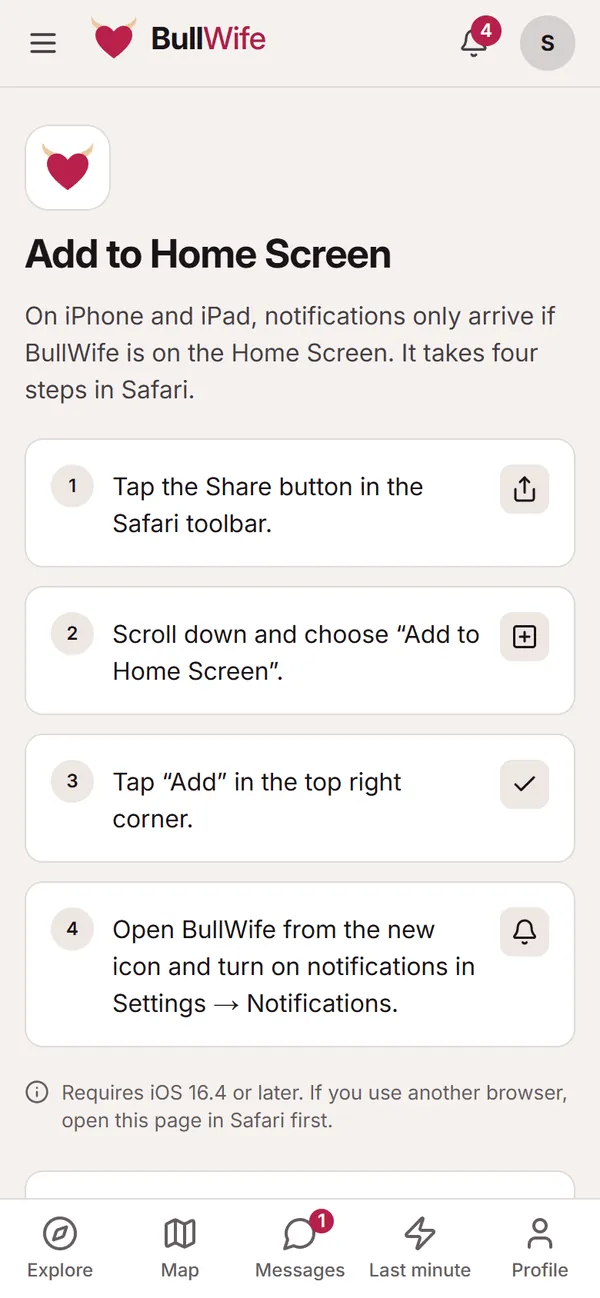
On iPhone and iPad, notifications only arrive if BullWife is on your Home Screen. You need iOS 16.4 or later and Safari:
- Tap the Share button in Safari's toolbar.
- Scroll down and choose Add to Home Screen.
- Tap Add at the top right.
- Open BullWife from the new icon and turn on notifications under Settings → Notifications.
If you use another browser, open the site in Safari first.
Installing the app on Android
In Chrome, the site offers to install the app: tap Install. If the prompt doesn't appear, open Chrome's ⋮ menu and choose Add to Home screen (or Install app). On Android, notifications work even without installing, but having the icon makes everything easier.
The notification centre
Even without push notifications you won't miss a thing: the bell at the top shows how many new items there are. Inside you'll find requests, replies, trip applications and updates that concern you, split into All, Unread and Requests.
Screenshots show sample profiles, not real members.